
Shopping Cart
There are no more items in your cart
.jpg)
- News
- 0 likes
- 1013 views
- 0 comments
3D Printer Wizardry: The Best Slicer Settings and Free STL Resources 🧙♂️✨
Hey! 🎉 Are you new to 3D printing or have you already created wonders? It does not matter, our shared problem is finding the best slicer settings and reaching quality STL files, right? 😄 In this post I will explain how you can get great prints using Cura and where you can find the best STL files. Let's get started! 🚀
What Is a Slicer? 🍰
First of all, what we call a "slicer" is software that slices the model the 3D printer will print. That is, it converts the STL file into G-code, a language the printer understands. And of course one of the most popular slicers is Cura! 💻 So which settings should you use in Cura for the best print results?
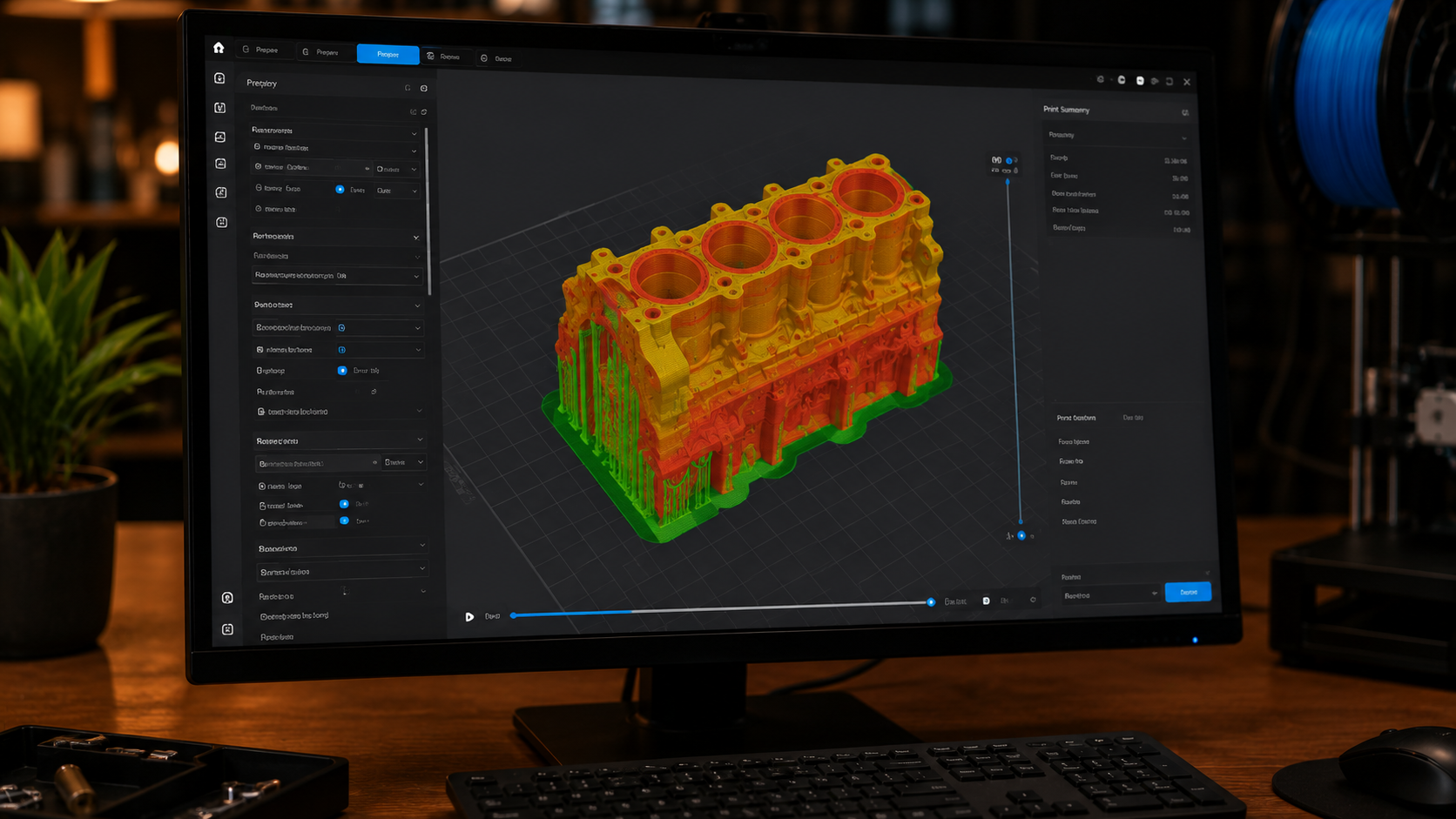
How to Set Up the Best Settings with Cura 🔧
-
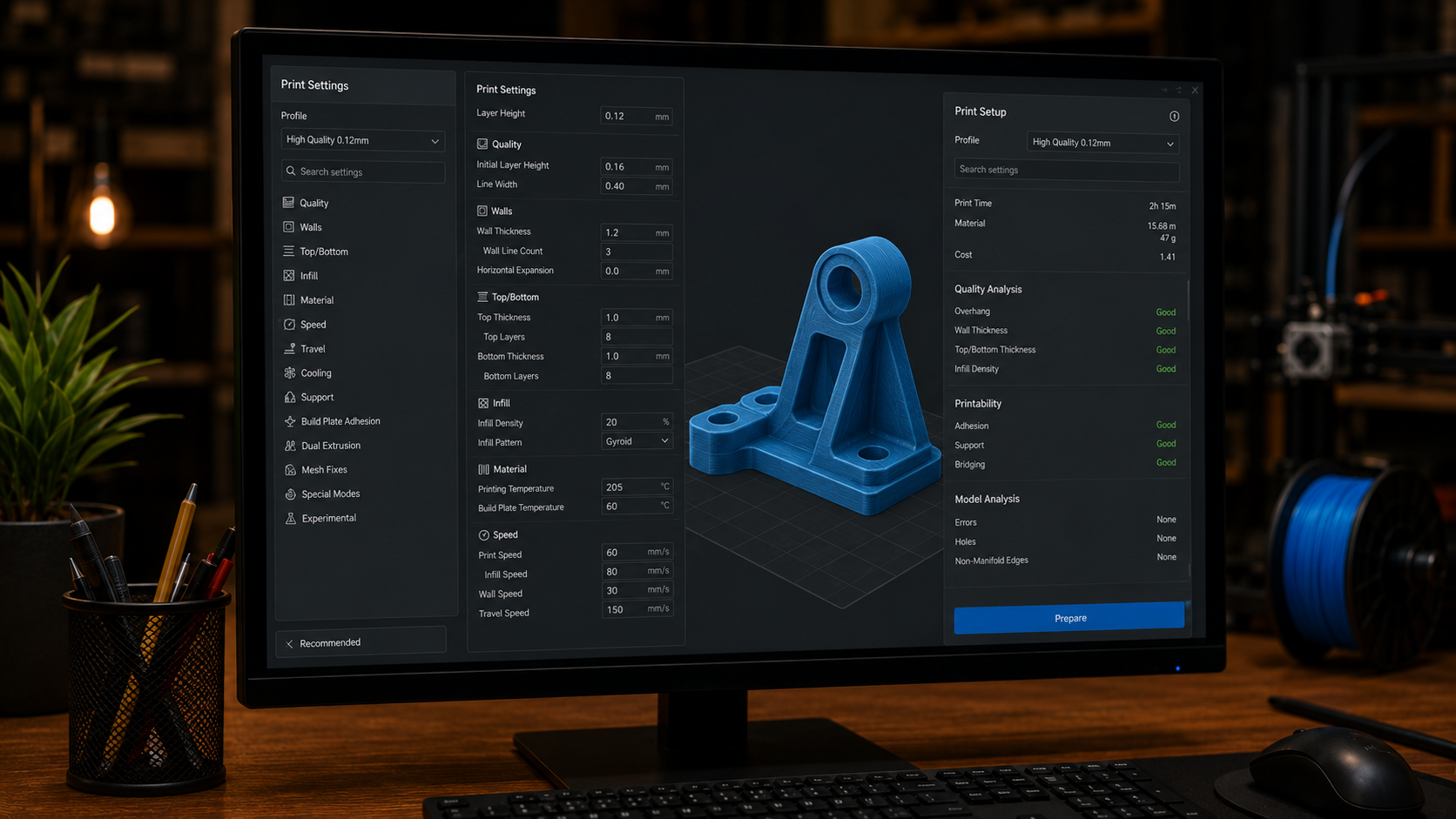
Layer Height: This is the key to print quality! 👌 Low layer heights such as 0.1 mm give high quality but increase print time. If you want a fast print, 0.2 mm works just fine. 🏎️
-
Print Speed: 50-60 mm/s is ideal for standard prints. But if you are doing detailed work, lowering the speed will improve quality. 🖼️ Being patient sometimes brings the best result! ⏳
-
Infill: An important parameter for the durability of your 3D model. 🔨 Generally 20% infill is enough. But if you are making a functional part, 50% and above gives a stronger result. 🏗️
-
Supports: Supports are usually needed on complex models. Tree supports use less material and are also easy to clean! 🌳
-
Bed Adhesion: The first layer is very important! Brim or Raft can prevent the print from lifting off the bed. 🔥 Printing the first layers at a low speed also improves adhesion!
The Best Free STL Sites 🌐
Now we are ready to print, but first we need a model, right? 🎨 Here are the best free model sites:
- Thingiverse: Probably the most popular one! You can find every kind of free STL file. 🔍 Thingiverse
- MyMiniFactory: Offers quality, curated content. You can also send prints directly to your 3D printer! 🖨️ MyMiniFactory
- Cults3D: A great resource for creative designs and interesting collections. Although some content is paid, the free content also covers a very wide range. 💡 Cults3D
- Printables: This site, created by Prusa, hosts useful and fun models. 🧩 Printables
Importing STL Files into Cura 🧑💻
After you find your model, it is time to import it into Cura! Open Cura and drag and drop the STL file. Cura automatically starts slicing the model. By adjusting the slicing settings as we described above, you can get the best results. 🌟
Extra Tips and Tricks 🎯
- Create the first layer magic! A good first layer means a solid print overall. Be slow and patient! 🐢
- Calibration is a must! Do not forget to adjust printer temperatures according to the type of filament. 200°C-220°C is good for PLA and 230°C-250°C for ABS. 🌡️
- Test your slice! The "Preview" mode in Cura helps you understand how the model will look before printing. Be sure to check whether there is a wrong setting! 🔍
Although the 3D printing world requires some trial and error, the best part is that you can create wonders while learning! 🌈 I hope that with this guide you also get perfect results from your 3D printer. Remember, everything is possible with the right settings! 🎉
Now choose your model, download your STL and start printing! 😎
Comments (0)